![ic-plus-logo.png]](https://knowledge.ic.plus/hs-fs/hubfs/ICPlus_April2019/Images/ic-plus-logo.png?width=184&height=40&name=ic-plus-logo.png)
This guide explains how to export recorded footage from an IC Realtime DVR or NVR to a USB drive or DVD. Backups are useful when footage needs to be shared, archived, or reviewed outside of the recorder.
Before You Begin
Check that your USB drive or DVD has enough free space before starting. The recorder will display the needed space at the bottom of the screen once you have selected your footage — this must not exceed the free space shown at the top right. Only tick one backup device at a time.
Backing Up Footage
-
1
Insert your USB drive into one of the USB ports on the front or rear of the recorder, or insert a disc into the DVD burner if your unit has one.
-
2
Log in and navigate to the main menu. Select Backup from the menu options.
-
3
At the top of the screen, confirm your backup device is listed under Device Name. Check the Free/Total figure shown alongside it — there must be sufficient space remaining. Tick only one device before proceeding.
-
4
Click Record Channel to open the channel selection box. Tick the camera channels you want to export footage from.
-
5
Under Period, set the Start Time and End Time for the footage you want to export. Select the file type and stream type if needed (defaults are usually appropriate).
-
6
Click Search. The recorder will list all video clips that match your selected channels and time range.
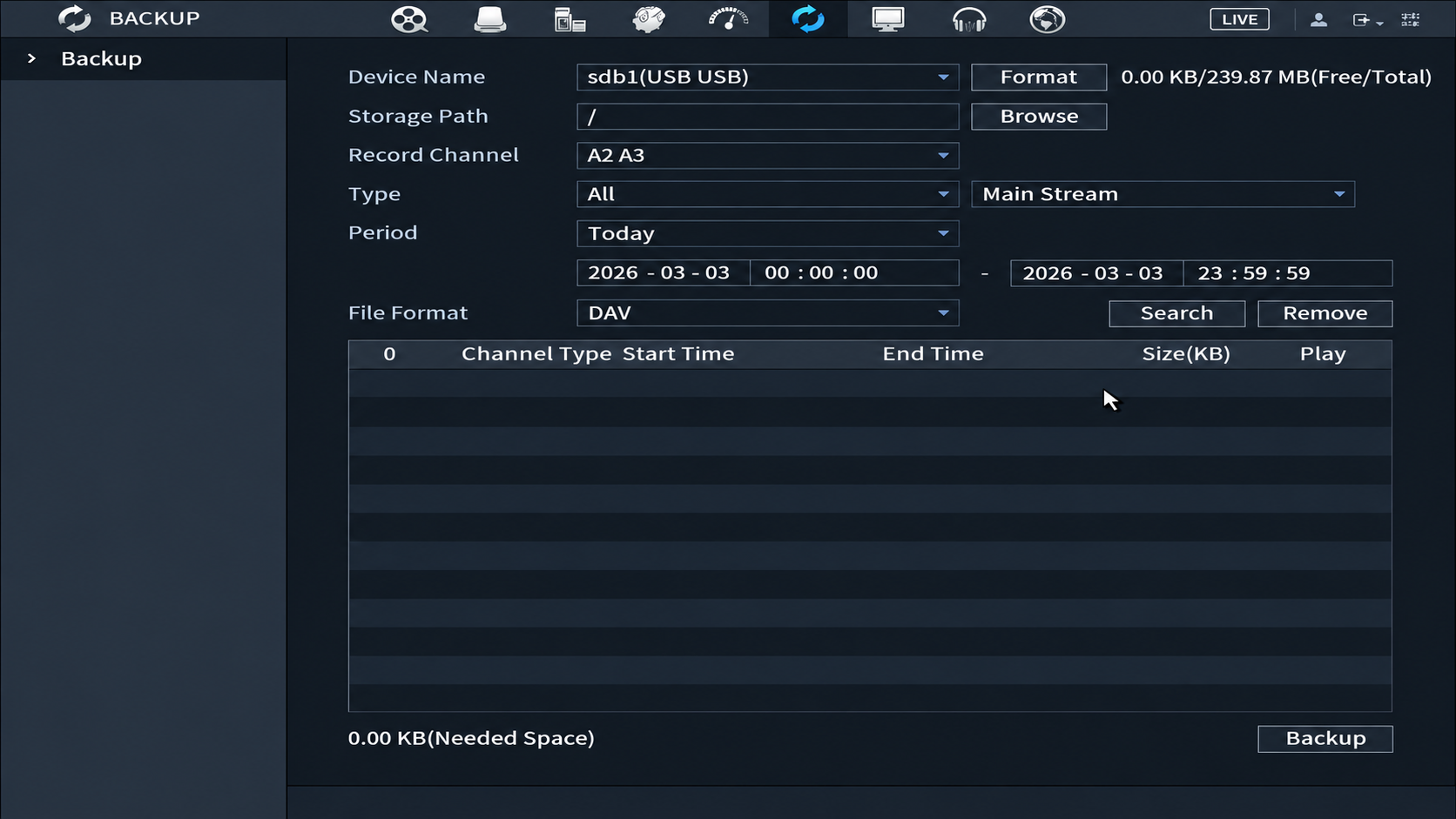
The backup screen after clicking Search — clips matching your criteria will appear in the list below.
-
7
Review the list of clips. Use the checkboxes on the left to include or exclude individual files. The Needed Space figure at the bottom left will update as you make selections — ensure it does not exceed the free space on your media.
-
8
If you need footage from additional channels for the same time period, adjust the Record Channel selection and click Search again to add more clips to your selection.
-
9
Once you are happy with your selection, click Backup to begin the export.
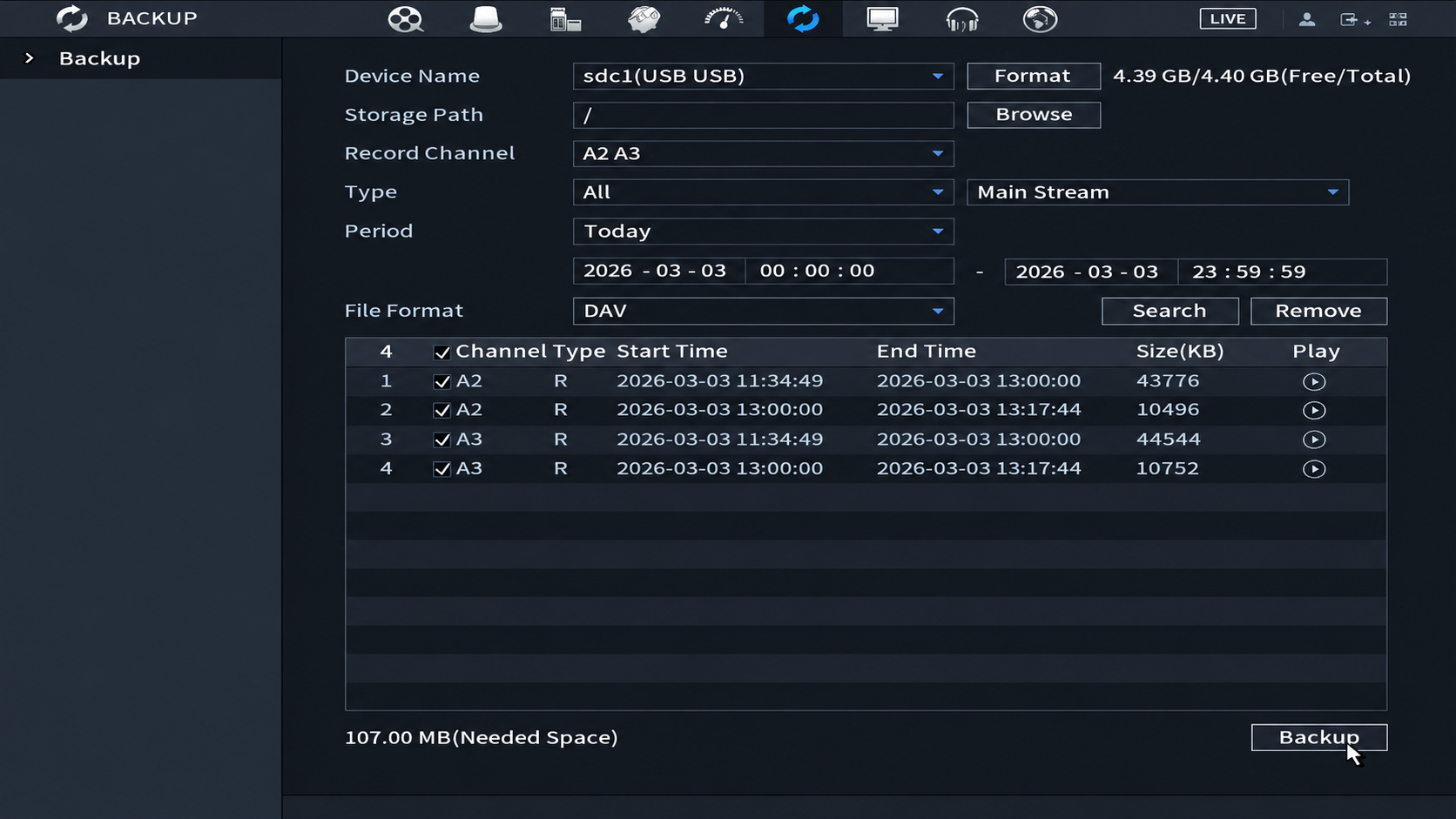
Example: four clips selected across channels A2 and A3, totalling 107 MB — within the available space on the USB drive.
-
10
The recorder will process the export. When it completes, the exported files will be shown on screen. You can then safely remove the USB drive or eject the DVD.
File Format Notes
- DAV (default) IC Realtime's native format. Offers the smallest file sizes and retains all metadata. Requires IC Realtime's free SmartPlayer software to play back on a PC or Mac — include this on the USB drive if sharing footage with a third party.
- AVI / MP4 Standard video formats playable on most devices without additional software. File sizes will be larger than DAV. Select these if the footage needs to be shared with someone who does not have SmartPlayer installed.
Sharing Footage Externally
If you are providing footage to a third party — such as the police or an insurance company — export in MP4 format where possible, as this requires no additional software to play. If exporting in DAV format, include a copy of IC Realtime's free SmartPlayer on the same USB drive.